Issues With Windows
When using the DaVinci Developer Adaptive on Windows, potential issues arise.
Long Loading Time on Startup
A potential performance issue causes exceeding loading time when starting DaVinci Developer Adaptive.
Cause
On each startup of DaVinci Developer Adaptive, Microsoft Defender scans the tool for security issues and therefore causes a delay in loading the tool.
Solution
This issue can be evaded by registering the tool as an exclusion for Microsoft Defender. DaVinci Developer Adaptive itself offers functionality for setting the exclusion in two different ways:
For both, a PowerShell script is triggered to register exclusions in the background.
Exclude Tool on First Startup
-
Prerequisite: Administrative privileges
-
Open DaVinci Developer Adaptive for the first time.
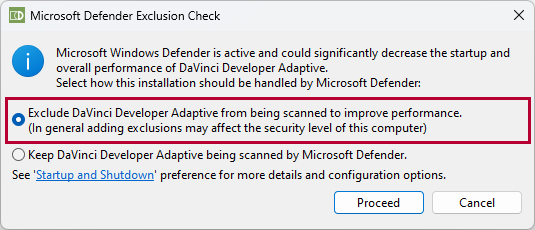
The Microsoft Defender Exclusion Check dialog pops up automatically.
-
Select [Exclude DaVinci Developer Adaptive from being scanned to improve performance] in the dialog.
-
Click Proceed.
The User Account Control dialog pops up.
-
Enter and confirm administrator’s credentials.
DaVinci Developer Adaptive triggers a PowerShell script which registers the tool exclusion for Microsoft Defender in the background.
Exclude Tool via Preference Settings
-
Prerequisite: Administrative privileges
-
Open DaVinci Developer Adaptive.
-
Navigate to Window > Preferences… in the menu bar.
The Preferences dialog pops up.
-
Navigate to General > Startup and Shutdown in the navigation bar.
-
Click Run exclusion check now.
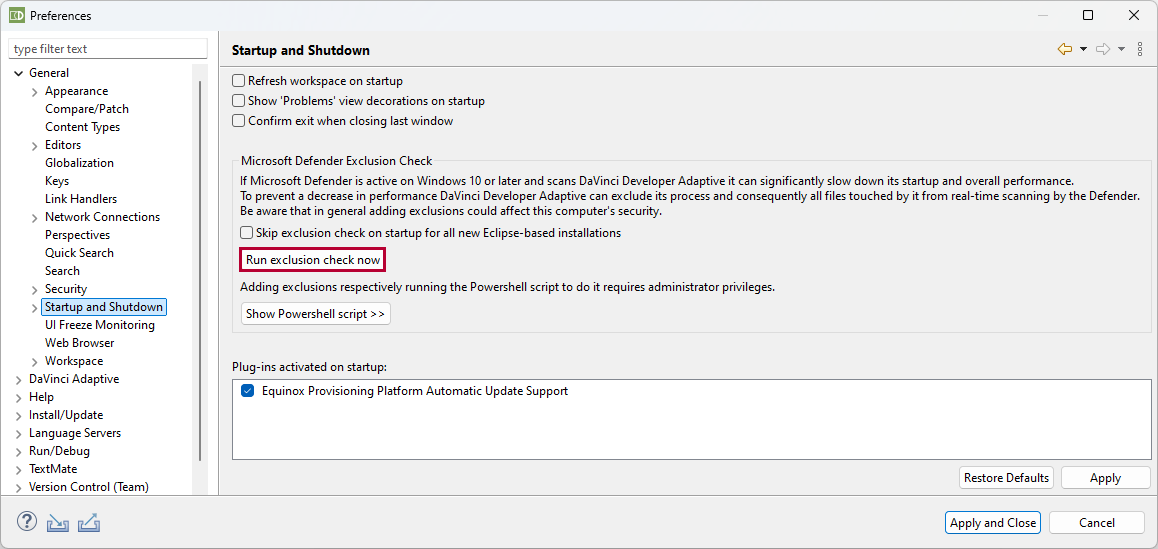
The Microsoft Defender Exclusion Check dialog pops up.
-
Select [Exclude DaVinci Developer Adaptive from being scanned to improve performance] in the dialog.
-
Click Proceed.
The User Account Control dialog pops up.
-
Enter and confirm administrator’s credentials.
DaVinci Developer Adaptive triggers a PowerShell script which registers the tool exclusion for Microsoft Defender in the background.
-
Click Apply and Close.