Create Machine Design
The Create Machine Design wizard supports you in creating new Machine Designs.
Open Wizard
To open the Create Machine Design wizard, expand your DaVinci Adaptive
project in the DaVinci Project
Explorer and double click on
 Open Project Dashboard. The Project Frame
opens showing the Project Home. You can then
open the Create Machine Design wizard as follows:
Open Project Dashboard. The Project Frame
opens showing the Project Home. You can then
open the Create Machine Design wizard as follows:
-
Open the
 Wizard menu on the top right of the Project
Frame and click the
Wizard menu on the top right of the Project
Frame and click the
 Machine Design Wizard command.
 -
Alternatively, use the context menu command
 Create|
Create Machine Design… of an AUTOSAR Package in the
AUTOSAR Model Explorer.
Create|
Create Machine Design… of an AUTOSAR Package in the
AUTOSAR Model Explorer.
The Create Machine Design wizard opens.
Step-by-Step Procedure
To create a new Machine Design, open the Create Machine Design wizard and proceed as follows:
-
Create Machine Design Page
On the Create Machine Design page, the general settings are defined.
Enter the Name, Package, and ARXML File of the Machine Design to be created.
Click Next > to confirm your settings and to continue with modeling the SOME/IP Service Discovery and Network Endpoints.
Click Finish to close the wizard without modeling the SOME/IP Service Discovery and Network Endpoints.
-
SOME/IP Service Discovery Page
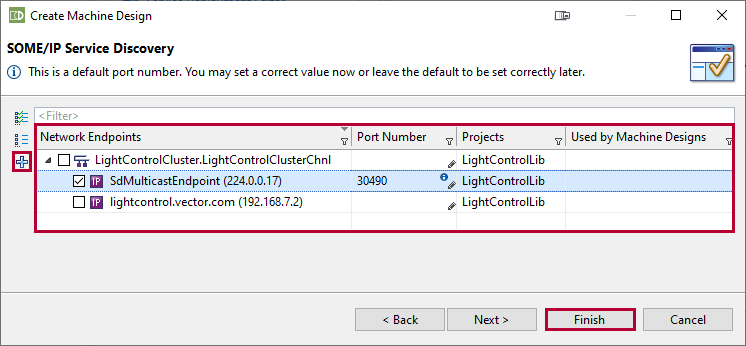
On the SOME/IP Service Discovery page, you can specify the Network Endpoints (that is, IP address) and port number that are used to publish the services of the resulting Machine. In the table, the following information on existing Network Endpoints is shown:
The column Network Endpoints lists the Network Endpoints below their parent Ethernet Physical Channels.
In the column Port Number, you can edit the port number for each selected Network Endpoint.
The column Projects shows the project in the workspace to which the respective Ethernet Physical Channel/Network Endpoint belongs.
The column Used by Machine Designs shows if a Network Endpoint is already used by another Machine Design.
Activate the check boxes of the Network Endpoints of the Machine that are used to publish services.
To create a new NetworkEndpoint, click the
 New Network
Endpoint icon and follow the Create
Network Endpoint wizard.
New Network
Endpoint icon and follow the Create
Network Endpoint wizard.Click Next > to confirm your selection and to continue with modeling the Network Endpoints.
Click Finish to close the wizard without modeling the Network Endpoints.
-
Network Endpoints Page
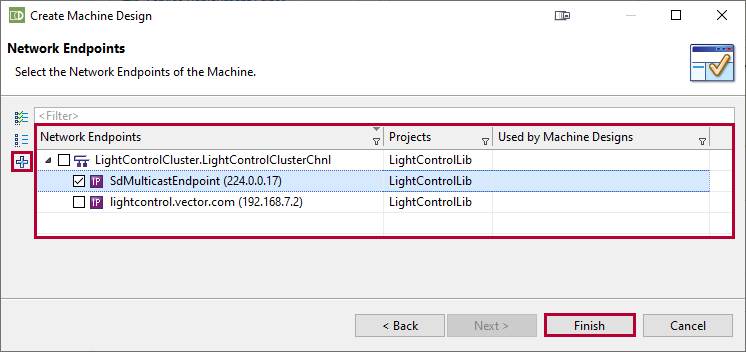
On the Network Endpoints page, you can specify the Network Endpoints (that is, IP address) used by the resulting Machine for communication. In the table, the following information on existing Network Endpoints is shown:
-
The column Network Endpoints lists the Network Endpoints below their parent Ethernet Physical Channels.
-
The column Projects shows the project in the workspace to which the respective Ethernet Physical Channel/Network Endpoint belongs.
-
The column Used by Machine Designs shows if a Network Endpoint is already used by another Machine Design.
Activate the check boxes of the Network Endpoints of the Machine that are used for communication.
To create a new Network Endpoint, click the
New Network
Endpoint icon and follow the Create
Network Endpoint wizard.Click Finish to close the wizard.
-
The new Machine Design has been created.