Script Project
Script Project is the more efficient way to create and maintain a script. It is the recommended way to develop scripts, containing more tasks or multiple classes. It provides IDE support for Code completion, Syntax highlighting, API Documentation, Debug support, Build support.
To create a script, proceed with chapter Script Setup.
Script Project Structure
An automation project will at least contain the following files and folders:
<ProjectName>/
├── .gradle/          ❌  Gradle temp folder
├── build/            ❌  Gradle build folder
├── gradle/           ✅  Gradle bootstrap folder
├── src/              ✅  Groovy, Java, Kotlin sources and resources
├── testCfg/          ✅  Tests (Automation Testing Framework)
├── gradlew.bat       ✅  Gradle wrapper (see Build System)
├── build.gradle      ✅  Gradle build script (see Build System)
├── settings.gradle   ✅  Gradle settings (see Build System)
└── <ProjectName>.iml ❌  IntelliJ project file (optional)
✅ commit to version control system | ❌ do not commit to version control system
The IntelliJ project is opened directly via File → Open on the settings.gradle file – project files are generated automatically by the Gradle sync.
gradlew ideaThe script project is the preferred way to develop an automation script, if the content is more than one simple task. A script project is an IDE project (IntelliJ recommended), with compile bindings to the DaVinci Configurator AutomationInterface. It is also called "Automation Script Project" throughout this document.
The DaVinci Configurator 6 will load a script project as a single .jar file.
So the script project must be built and packaged into a .jar file before it can be executed by the DaVinci Configurator 6.
Jar Location
The Jar location of the build script project is <ProjectDir>/build/libs.
Gradle will automatically create the directories during the build and will generate the built *.jar file.
Prerequisites
Before you start, please make sure that the following items are available on your system:
-
CFG6: You need the DaVinci Configurator 6 available on your system.
-
Java JDK: For the development with the IntelliJ a "Java SE Development Kit 21" (JDK 21) is required.Please install the JDK 21 as described in chapter Java JDK Setup.
-
IDE: For the script project development the recommended IDE is IntelliJ.Please install IntelliJ as described in chapter IntelliJ IDEA Setup.
-
Build system: To build the script project the build system Gradle is required.See chapter Build System for installation instructions.
Java JDK Setup
Install a JDK 21 on your system. The Java JDK website provides download versions for different systems. Download an appropriate version and make sure you get the x64 version.
The JDK is needed for the Java Compiler for IntelliJ and Gradle.
IntelliJ IDEA Setup
Install IntelliJ on your system. The IntelliJ IDEA website provides download versions for different applications.
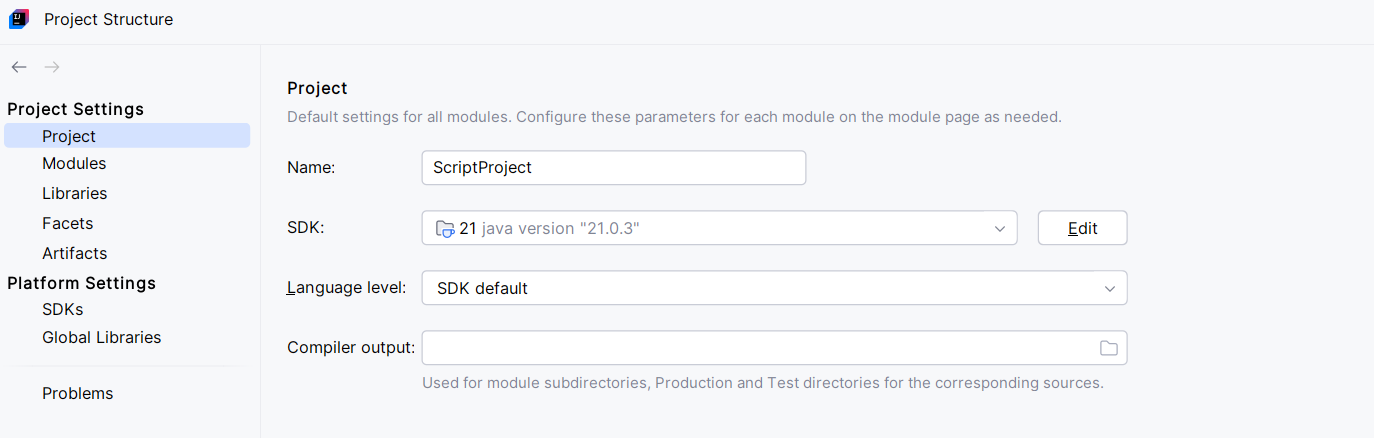
Code completion and compilation additionally require that the Project SDK is set. Therefore, open the File → Project Structure dialog in IntelliJ and switch to the settings dialog for Project. If not already available, set an appropriate option for the Project SDK. Please set the value to a valid Java JDK (see Java JDK Setup).
Note: Do not select a JRE.
To enable building of projects, ensure that the Gradle JVM is set. Therefore, open the File → Settings dialog in IntelliJ and find the settings dialog for Gradle. If not already available, set an appropriate option for the Gradle JVM. Please set the value to Project SDK to use the selected SDK above.
Note: Do not select a JRE.
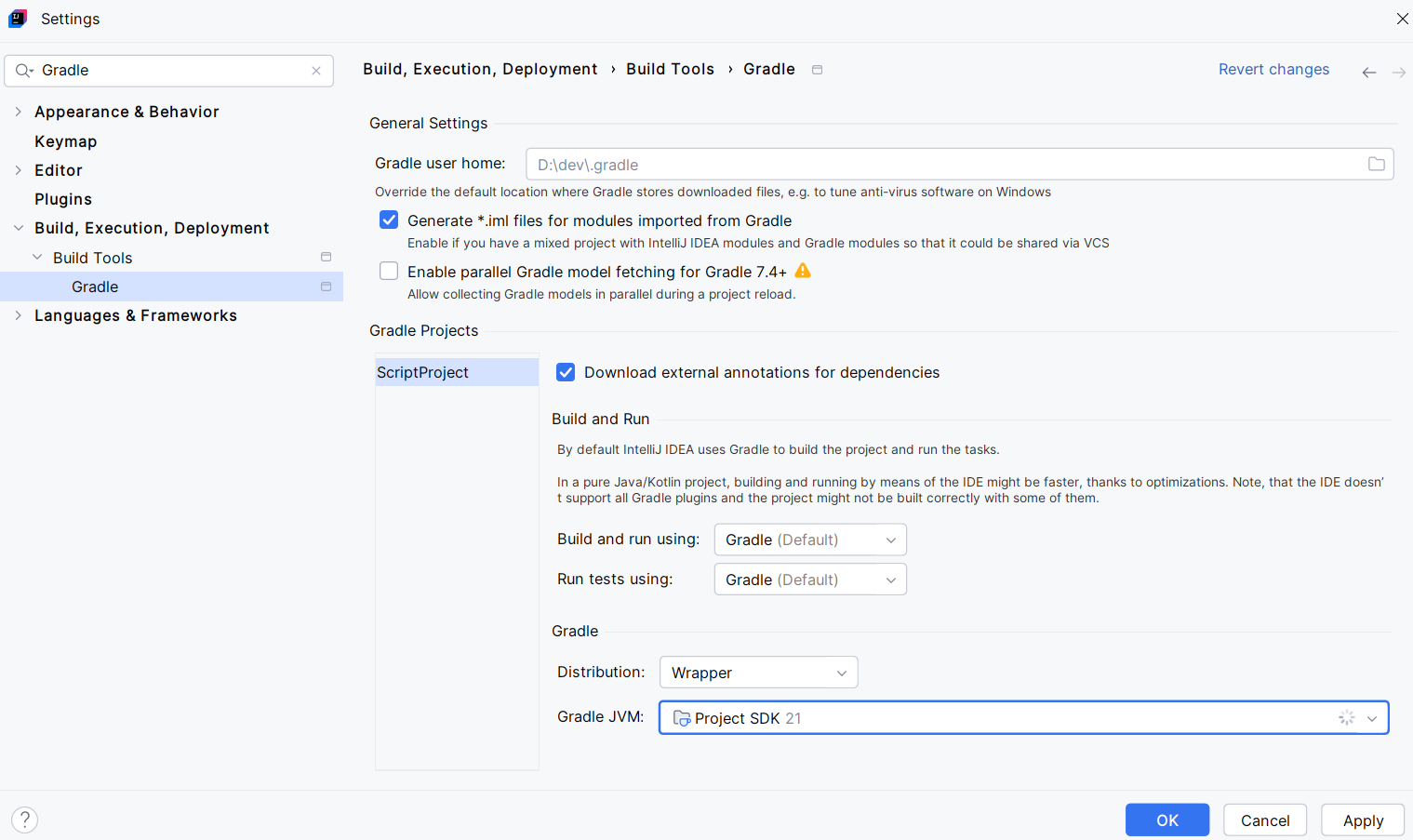
If you do not have the Gradle settings, please make sure that the Gradle plugin inside of IntelliJ is installed. Open the File → Settings dialog then Plugins and select the Gradle plugin.