Build System
The build system uses Gradle to build a single Jar file. It also sets up the dependencies to the DaVinci Configurator and creates the IntelliJ IDEA project.
To set up the Gradle installation, see Script Project Creation.
Jar Creation and Output Location
The call to gradlew build in the root directory of your automation script project will create the jar file. The output location is:
<ProjectRoot>/build/libs/<ProjectName>.jarGradle File Structure
The default automation project contains the following Gradle build files:
-
gradlew.bat— Gradle batch file to start Gradle (Gradle Wrapper) -
build.gradle— General build file — you can modify it to adapt the build to your needs -
settings.gradle— General build project settings — see Gradle documentation
build.gradle
The file contains three essential parts of the build:
-
plugins{}— defines the used Gradle plugins -
dependencies{}— defines the dependencies of the project -
scriptProject{}— defines the configuration of the Automation Build Gradle Plugin
dependencies
The following example shows how to add a dependency from a Maven repository. We assume we have a jar from a Maven repository like Apache Commons IO (the identifier would be
commons-io:commons-io:2.5).
dependencies {
    // Change the identifier to your library to use
    implementation 'commons-io:commons-io:2.5'
    // You could add multiple libraries with additional implementation lines
}
If you are behind a proxy or firewall:
-
You must either set proxy options for Gradle (see Gradle and Java documentation for details).
-
Preferred way: use a Maven repository inside your network. To set a repository, add the following before the
dependenciesblock:
repositories {
    // URL to your repository
    // The URL below is the Vector internal network server
    // Please change the URL to your server
    maven { url = 'https://vistrpesart1.vi.vector.int/artifactory/pes-davinciall-maven' }
    // Or reference MavenCentral server
    mavenCentral()
}
Usage of External Libraries (Jars) in the AutomationProject
You can reference external libraries (Jar files) in your AutomationProject, but you have to configure the libraries in the Gradle build files. DO NOT add a dependency in IntelliJ — this will not work.
The easiest and preferred way is to use a library from any Maven repository like MavenCentral or JCenter. This will also handle versions and transitive dependencies automatically.
Static Compilation of Groovy Code
The AutomationInterface contains a Groovy compiler extension. In some use cases performance has priority, and therefore it is possible to use Groovy with static compilation.
Groovy is a dynamic JVM language using dynamic dispatch for its method calls. Dynamic dispatch in Groovy is approximately three times slower compared to a normal Java method call. Groovy has added the static compilation feature via the
@CompileStatic annotation, which allows compiling most of Groovy method calls into direct JVM bytecode method calls, thus avoiding all the dynamic dispatch overhead.
Mark your classes or methods with:
@CompileStatic
def myMethod() {
}

@CompileStatic
class MyClass {
}
The same applies if you want to use the @TypeChecked annotation:
@TypeChecked
def myMethod() {
}
Gradle Maven Publishing of an AutomationProject
The Gradle scriptProject automatically adds a Gradle MavenPublication instance for all signed Jar files. The publication is named signedJar, so publish and
publishToMavenLocal will publish the signed Jar files.
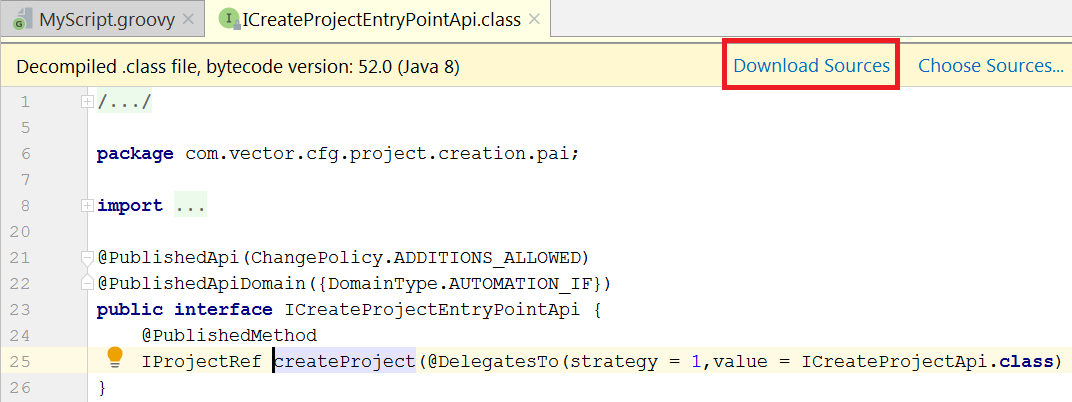
To download source files for API specifications, enter the API with F3 in IntelliJ and click on Download Sources:
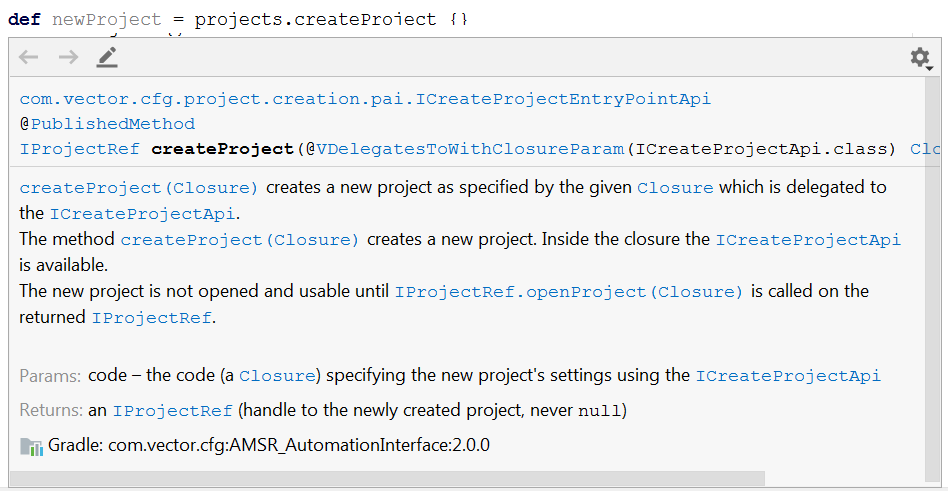
After downloading, the JavaDoc will be shown inline in the editor: