IntelliJ IDEA Usage
Show API Specifications (JavaDoc)
In newer IntelliJ versions, the automatic download of source files and their respective Javadocs has been disabled. In order to benefit from the API specifications during coding it is necessary to download the source files manually.
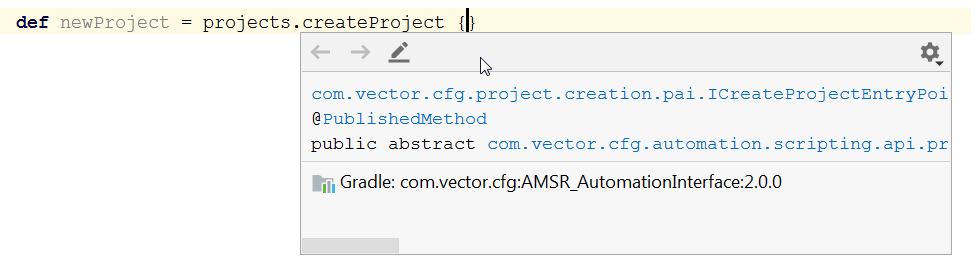
If source files are not yet downloaded, it looks like this:
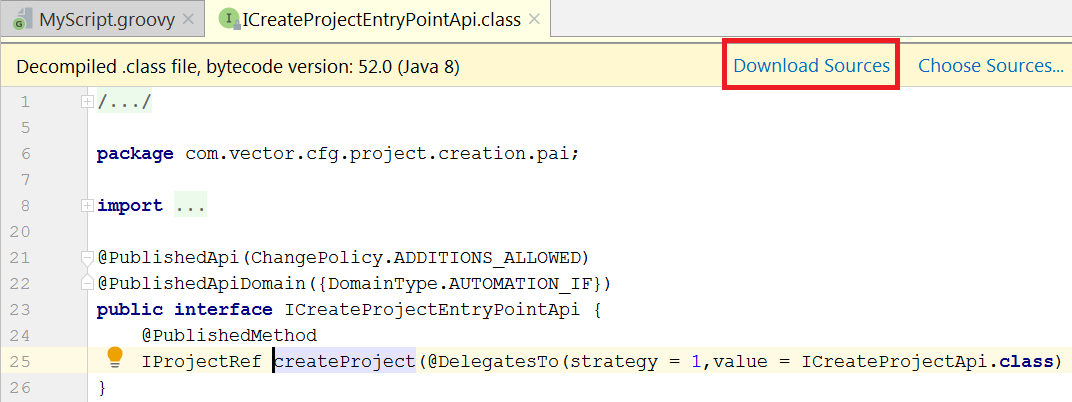
To download source files, enter the API with F3 and click on Download Sources:
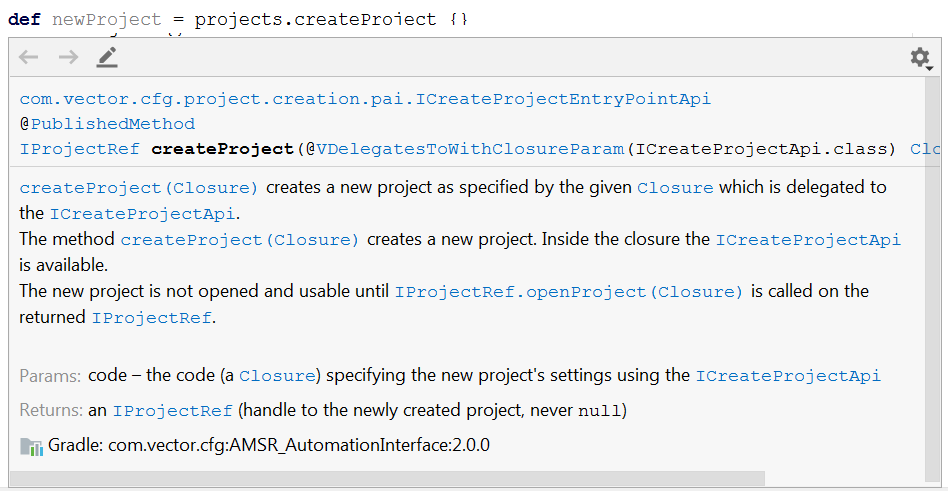
After downloading, the JavaDoc will be shown inline in the editor:
Building Projects
The standard way to build projects is to choose the option <ProjectName> [build] in the Run menu in the toolbar and to press the Run button beneath that menu.
Troubleshooting
Code completion, Compilation
If code completion or compilation does not work, verify that the Java JDK settings in IntelliJ IDEA are correct. You have to set the Project JDK and the Gradle JDK setting. See Script Project Creation.
Gradle build, build button
If the Gradle build does nothing after start or the build button is grayed, verify that the Java JDK settings in IntelliJ IDEA are correct. You have to set the Gradle JDK setting. See Script Project Creation.
If the build button is marked with an error, make sure that the Gradle plugin inside IntelliJ IDEA is installed. Open File → Settings… → Plugins and select the Gradle plugin.
IntelliJ Build
Do not use the IntelliJ menu Build or the context menu entries Make Project, Make Module, Rebuild Project, or Compile . The project must be built with Gradle, not with IntelliJ IDEA. Select one of the Run Configurations (Run menu) to build the project as described in the Building Projects section above.
Groovy SDK not configured
If you get the message 'Groovy SDK is not configured for …' in IntelliJ IDEA, you probably have to migrate your project as described in Project Usage Across Configurator Versions.
No JavaDoc Shown
If you don’t see a Javadoc description for the APIs, see the Show API Specifications section above.
Compile errors — Could not find com.vector.cfg:DVCfgAutomationInterface
If you get compile errors inside IntelliJ IDEA after updating the DaVinci Configurator or moving projects, execute the project migration step. See Project Usage Across Configurator Versions.
Download of Gradle Distribution Error
If you get an error when starting gradlew like:
Downloading http://vistrcfgci1.vi.vector.int/buildcomponents/Gradle/distributions/gradle-9.5.1-bin.zip
Exception in thread "main" java.io.FileNotFoundException: ...
The problem is that you cannot connect to the server where the Gradle installation is located. The Vector internal server
http://vistrcfgci1.vi.vector.int is only accessible from within the Vector network.
To change the location, open the file <YourProject>/gradle/wrapper/gradle-wrapper.properties and change the distributionUrl line. You have multiple options:
-
Change the URL to the Gradle default (needs internet access):
distributionUrl=https://services.gradle.org/distributions/gradle-9.5.1-bin.zip-
Change the URL to a server location of your choice (e.g. inside your company network).
-
Download Gradle manually and change the URL to a local file system location:
distributionUrl=file:/D:/YourFolder/gradle-9.5.1-bin.zipNote: The colon in https:// does not need escaping here because = is already the key-value separator.