Migrate a vVIRTUALtarget Project
You can migrate a project to another VTT use case if it started with a VTT Only BSW Package and later receives a BSW Package with hardware MCAL. DaVinci Configurator Classic lets you migrate a project created with a VTT Only BSW Package to a hardware-based BSW Package.
The hardware BSW Package may or may not contain VttMcal modules. If it includes the VttMcal modules, you can migrate the project to a VTT Dual-Target project.
In addition, the migration strategy differs depending on whether you configure the hardware MCAL modules using DaVinci Configurator Classic or a third-party MCAL configuration tool ("Two Tools Configuration Approach"). If you use another configuration tool to set up the MCAL configuration, export that configuration as ARXML and import it into DaVinci Configurator Classic.
-
An existing DaVinci Configurator 6 project created with a VTT Only BSW Package.
-
The new hardware-based BSW Package to migrate the project to.
-
Open the existing DaVinci Configurator 6 project with the new BSW Package.
If you get a BSW Package Mismatch warning, select the second option, "Migrate the project to this BSW Package and continue," see Migrate project to new BSW Package. Also review the additional warnings listed.
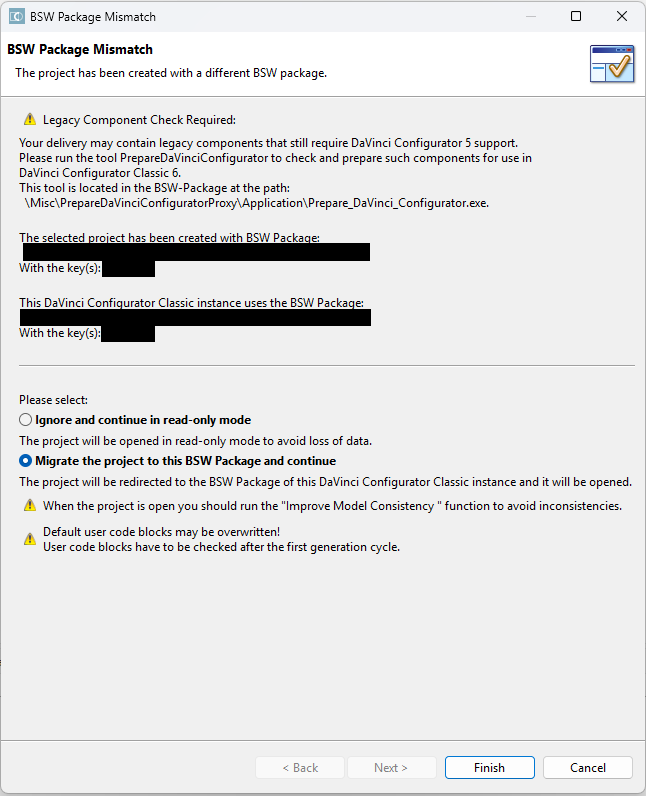 Figure 1. Migrate project to new BSW Package
 -
Adjust the project settings after migrating the project to the new BSW Package. Change the Target Type from Virtual Target (VTT Only) to Real Target & Virtual Target (Dual-Target) or Real Target.
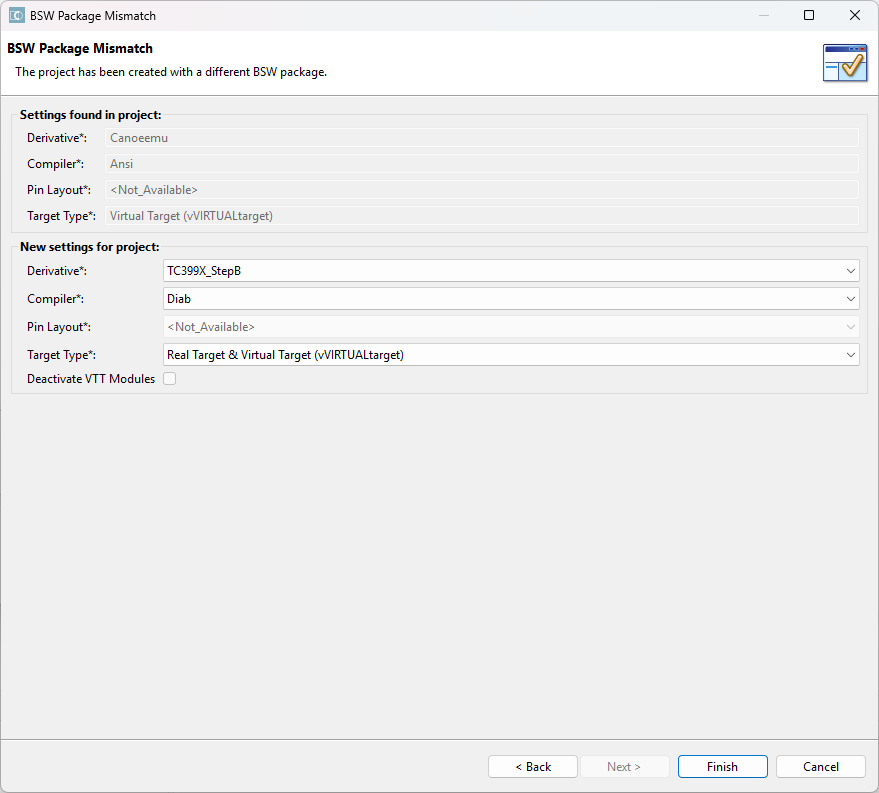 Figure 2. Changing Target Type from VTT Only to Dual-Target
 -
When DaVinci Configurator shows the Alternative Module Definition window, select the appropriate module definition for each module. See Alternative Module Definition Dialog for Switching Module Definitions for an example.
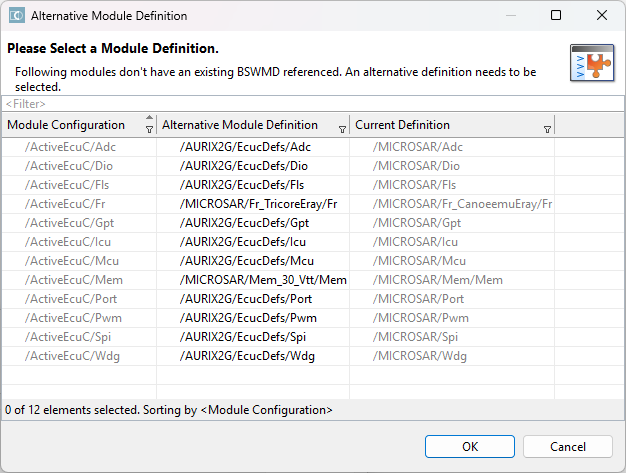 Figure 3. Alternative Module Definition Dialog for Switching Module Definitions
 -
In the Project Settings, adjust the derivative, compiler, and pin layout under the Target section to match your specific project requirements. Save the project. DaVinci Configurator might show the Alternative Module Definition dialog again, so you can select module definitions for the remaining MCAL modules that step 3 didn’t show (some modules only become available once you configure the correct target).
-
Resolve all errors that the validation view shows. Common migration-related errors include:
-
If parameters exist for the virtual MCAL modules but not for the hardware MCAL modules, delete them using the auto-resolve action.
-
Set the correct compiler in the OS configuration.
-
Resolve further errors.
-
|
Two Tools Configuration Approach: Instead of reusing the existing configuration of the placeholder MCAL modules, delete them in the project settings and import the MCAL configuration you created earlier with the second configuration tool. When you migrate a VTT Only project to a Dual-Target project, duplicate
the directory with the include files, for example, into folders named
includeVTT and includeHW. Use the hardware’s |