Configure the ECU for vVIRTUALtarget
After the ECU update, add the VTT modules required for the ECU configuration. DaVinci Configurator automatically synchronizes their configuration with the corresponding hardware or placeholder modules.
If a required workaround requires a VTT module configuration to differ from its hardware counterpart, override the automatic synchronization for the affected parameter.
-
ECU update executed, see the Startup Manual with vVIRTUALtarget for a step-by-step description.
How VTT Module Synchronization Works
DaVinci Configurator derives most of the VTT modules' configuration—the
modules with the VTT prefix in
Exemplary Set of Modules in a VTT Project below — from the configuration of the
corresponding placeholder (VTT Only) or hardware (VTT Dual-Target)
modules. This synchronization happens automatically in the background
when configuration parameters in the non-VTT modules change. In the VTT
modules' configuration, synchronized configuration parameters are
greyed out and cannot be changed. For special cases, set a parameter to
user-defined to override the synchronization, as described in the
procedure below.
|
Configure the VTT modules VTTCntrl and VTTEcuC manually, since these modules are VTT-specific. DaVinci Configurator does not synchronize the configuration of ECUC with the configuration of VTTEcuC. |
|
DaVinci Configurator does not synchronize interrupts configured in the hardware OS to the VTTOs configuration, because supported interrupts may differ between hardware and VTT. To configure the interrupt table in VTTOs, VTT drivers automatically register their needed interrupts. Custom interrupts must be manually created in VTTOs. By default, all interrupts have the same priority (1). Adjust interrupt priorities manually where needed, for example, FlexRay always requires the highest interrupt priority. Always create cross-core interrupts again. DaVinci Configurator cannot transfer them automatically. Synchronization of cross-core interrupts always fails, and the related Auto Solving Action fails as well. Delete and recreate these interrupts in both the virtual and the real configuration. |
-
Add missing VTT modules in the Basic Editor.
In a VTT Only BSW Package, enable both the "placeholder" MCAL that replaces the hardware MCAL and the corresponding VTT module for each MCAL module. Technically, a VTT Only BSW Package uses the same synchronization mechanisms as a Dual-Target BSW Package. However, it provides special placeholder MCAL modules instead of hardware MCAL modules, and these placeholder modules don’t come with a code generator.
-
Verify that the required modules are present. At least the modules VTTCntrl and VTTEcuC must be present. In addition, for each hardware-dependent BSW module
<ModuleName>, the corresponding VTT moduleVTT<ModuleName>must be present. This correspondence between the hardware module and the VTT module matters for the configuration synchronization described above.Exemplary Set of Modules in a VTT Project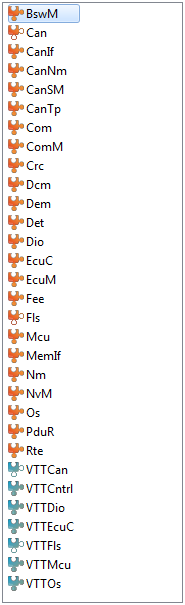
-
Override the automatic synchronization when needed. Whenever you need to set a VTT module’s configuration parameter to a user-defined value, and this parameter is locked (greyed out, because it is synchronized with the hardware MCAL’s configuration parameter), right-click the parameter name and select Set user defined. You can now change the parameter, and DaVinci Configurator no longer synchronizes it. DaVinci Configurator downgrades validation errors linked to user-defined parameters to warnings.
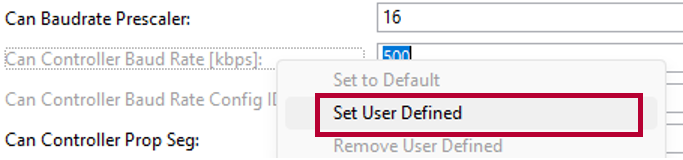 Figure 1. Overwriting the Automatic Synchronization using Set User Defined