ECU Project Synchronization
With ECU Project Synchronization, you share selected parts of an ECU configuration from one DaVinci Project with other DaVinci Projects.
You describe the shared parts in a sync job contract, publish them from the publishing project with dvcfg-b project publish, and take them over into each consuming project with dvcfg-b project sync.
ECU Project Synchronization replaces the Platform Functions of DaVinci Configurator Classic Version 5. To convert your Platform Functions, see Convert Platform Functions to Sync Job Contracts.
Typical Workflow
-
Create a sync job contract that selects the shared configuration.
-
Publish the configuration from the publishing project with
dvcfg-b project publish. -
Share the published data with the consuming projects, for example through a repository or a build artifact.
-
Synchronize each consuming project with
dvcfg-b project sync. -
Repeat publishing and synchronizing whenever the shared configuration changes.
For the details of each step, see Publishing and Synchronizing Configuration.
How ECU Project Synchronization Works
ECU Project Synchronization copies selected parts of the ECU configuration from one DaVinci Project into other DaVinci Projects. A typical use case is a platform project whose basic configuration, for example communication or memory settings, is reused in several customer projects. The projects can live in separate repositories, and every consuming project decides itself when it takes over a new version of the shared configuration.
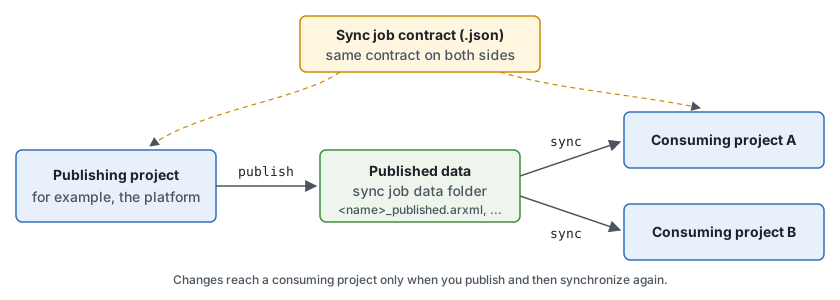
ECU Project Synchronization uses the following terms:
- Sync job contract
-
A JSON file that names the shared part of the configuration and lists the definitions and instances it contains. The publishing project and every consuming project use the same contract. See Sync Job Contracts.
- Publishing project
-
The DaVinci Project that owns the shared configuration. You run
dvcfg-b project publishon it. - Published data
-
The files that
dvcfg-b project publishwrites for each contract into the sync job data folder. The main file is<name>_published.arxml, an ARXML file that contains only the elements selected by the contract. - Consuming project
-
Each DaVinci Project that takes over the shared configuration. You run
dvcfg-b project syncon it.
ECU Project Synchronization has the following characteristics:
-
Changes reach a consuming project only when you publish and then synchronize. Nothing is updated in the background when a project is loaded.
-
The consuming project gets its own copy of the published elements. You can still edit these elements in the consuming project, but the next synchronization overwrites them with the published values.
-
Elements that exist only in the consuming project are kept.
-
You publish and synchronize with the command-line interface
dvcfg-b. This makes it easy to run both steps in CI pipelines. There’s no menu entry in the GUI clients. -
The published data is plain ARXML. You can version it in Git or distribute it as a build artifact, also across repositories.
Synchronize Instead of Subscribe
In DaVinci Configurator Classic Version 6, a consuming project doesn’t subscribe to sync jobs, and no subscription is stored in the project.
You trigger each synchronization explicitly with dvcfg-b project sync.
In DaVinci Configurator Classic Version 5, a consuming project took the subscriber role and subscribed to the sync jobs of a publishing project.
The command dvcfg-b project sync replaces this subscriber role:
Whenever a consuming project wants to take over the published data, you run dvcfg-b project sync on it.
Which contracts are synchronized is decided by the command call with the options --sync-job-location and --sync-job-name, not by a setting stored in the project.
The entries defaultPublisher and defaultSubscribers of contracts from DaVinci Configurator Classic Version 5 are ignored, so you can keep using these contracts unchanged.
Publishing and Synchronizing Configuration
Use this procedure to share the configuration described by a sync job contract from a publishing project with a consuming project. The example shares the general Com settings and one PDU of a platform project.
Prerequisites
Publishing and synchronizing configuration requires the setup of:
License |
|
Installation |
|
Input |
|
Steps
-
Create a sync job contract that describes the shared configuration, and save it as a
.jsonfile, for exampleSyncJobContracts/platform-com.jsonin a repository that both projects can access:{ "name": "platform-com", "origin": "Platform Team", "definitions": [ { "definition": "/MICROSAR/Com/ComGeneral", "includeSubElements": true } ], "instances": [ { "instance": "/ActiveEcuC/Com/ComConfig/ComIPdu_001", "includeSubElements": true } ] }For all fields and rules of the contract, see Sync Job Contracts. The same page also describes how to find the definition and instance paths.
-
Publish the configuration from the publishing project:
$ dvcfg-b project publish -p="/Path/To/Platform/Platform.dvjson" -b="/Path/To/Platform/BSW" -d="/Path/To/SyncJobData" -l="/Path/To/SyncJobContracts" -n="platform-com"-
-d(--sync-job-data) is the folder that receives the published data. -
-l(--sync-job-location) is a folder that contains sync job contracts. The command searches it recursively for.jsonfiles. -
-n(--sync-job-name) selects contracts by theirname. If you omit-n, the command publishes all contracts it finds.On success, the command reports the published contracts:
Publishing                    STARTED
[INFO]  Exporting jobs [platform-com] to folder: /Path/To/SyncJobData
[INFO]  Export job 'platform-com' ...
[INFO]  Publishing finished: 1 published, 0 skipped, 0 failed (of 1 sync job contracts).
Publishing                    SUCCESSFUL
The folder
/Path/To/SyncJobDatanow contains the published data: -
platform-com_published.arxml, the ARXML file with the selected elements. -
platform-com_checksum.md5, the checksum of the ARXML file. -
platform-com_shortDef.json, the name and origin of the contract.
-
-
Make the published data and the contract available to the consuming project, for example by committing them to a shared repository or by passing them as a build artifact. Always keep the three files of a contract together.
-
Synchronize the consuming project with the published data:
$ dvcfg-b project sync -p="/Path/To/Customer/Customer.dvjson" -b="/Path/To/Customer/BSW" -d="/Path/To/SyncJobData" -l="/Path/To/SyncJobContracts" -n="platform-com"The command finds the published data by the name of the contract, so it needs the contract as well. It only loads the file
<name>_published.arxmlthatdvcfg-b project publishcreated. Pass the same contract folder with-las for publishing.On success, the command reports the synchronized contracts and saves the project:
Synchronizing                 STARTED
[INFO]  Sync jobs...
[INFO]  Synchronize job 'platform-com' ...
[INFO]  Loading published data project: [/Path/To/SyncJobData/platform-com_published.arxml]
[INFO]  Preprocessing published data
[INFO]  Project has been synchronized with the published data.
[INFO]  Synchronization finished: 1 complete, 0 incomplete, 0 skipped, 0 failed (of 1 sync job contracts).
[INFO]  Project has been saved.
Synchronizing                 SUCCESSFUL
-
Check the result of the synchronization.
If the exit code is
1, at least one contract couldn’t be synchronized completely. The log names the modules and elements that weren’t taken over. If the comparison found differences, the sync report<name>.htmlin the log folder of the consuming project, by defaultOutput/Log, lists all added, removed, and modified elements and the reasons for each element that wasn’t taken over. The log shows the path of the report asSync report of the sync job '<name>': <path>. For the meaning of each result, see Results and Exit Codes. -
Repeat the synchronization step for each consuming project. Repeat the publish and synchronization steps whenever the shared configuration changes.
|
Results and Exit Codes
dvcfg-b project publish and dvcfg-b project sync process each contract on its own.
A problem with one contract doesn’t stop the processing of the other contracts.
The log shows the result of each contract, and the last log line sums up the results, for example:
Synchronization finished: 1 complete, 1 incomplete, 0 skipped, 0 failed (of 2 sync job contracts).
| Result | Meaning | Exit code |
|---|---|---|
Published |
The published data of the contract was written to the sync job data folder. |
|
Skipped |
The contract doesn’t select any element of the project, for example because an instance path doesn’t exist in the project.
The log shows |
|
Failed |
The contract couldn’t be published, for example because an instance path has an invalid syntax or the sync job data folder can’t be written.
The log shows |
|
| Result | Meaning | Exit code |
|---|---|---|
Synchronized |
All published elements were taken over, or the project already matched the published data.
The summary line counts these contracts as |
|
Incomplete |
Some published elements or modules couldn’t be taken over. All other elements were taken over and the project was saved. Typical reasons:
If the comparison found differences, the sync report |
|
Skipped |
The sync job data folder doesn’t contain published data for the contract, and no other ARXML file whose name starts with the contract name.
The log shows |
|
Failed |
The contract couldn’t be synchronized. Typical reasons:
|
|
If at least one contract has the result Failed or Incomplete, the command prints a summary and returns the exit code 1, for example:
1 of 1 sync job contracts could not be synchronized completely (see the sync report in the project log folder): platform-com
The following problems stop the whole command before any contract is processed.
The command then returns an exit code other than 0:
-
A name passed with
--sync-job-namedoesn’t belong to any contract that was found. The error output containsThe following synchronization job contracts couldn’t be found: [<name>]. -
A
.jsonfile in a contract folder isn’t valid JSON. -
The consuming project is opened read-only, for example because its BSW Package doesn’t match. The log shows
Synchronization cannot be executed. The project is opened as read-only.
If no contract is found at all and you don’t pass --sync-job-name, the commands do nothing and return the exit code 0.
For the exit codes of all commands, see Exit Codes.